Clinical Investigator (CI) Sign-Off Process
Clinical Investigators (CIs) must sign-off/approve all site DTLs; this is required to satisfy Federal regulations and will be reviewed during site audits. A CI signing a DTL is responsible for the conduct of the study at the site and must ensure the appropriate training and oversight of site staff that are delegated study related tasks (21 CFR 312.3 and ICH E6). CI sign-off is required at the following times during the lifecycle of the DTL:
- Initial approval of the site DTL;
- New task assignments requiring CI sign-off (to activate those new assignments);
- New versions of the DTL; and
- At least annually (DTLs requiring annual approval are indicated by an icon
 in the Site DTL Browser, included in the count in the Upcoming annual DTL reviews tile in the Dashboard, and added to the CI’s DTL approvals page 31 days before their due date).
For studies requiring a DTL, a major deficiency may be assigned at audit if study-related tasks are performed by staff who are not on the DTL or active on the DTL, for failure to sign the DTL annually, or if tasks are performed while a DTL is not approved.
CIs have the option of signing a single DTL or signing multiple DTLs at one time. CIs and their associated DTL Administrators (DTLAs) receive bi-monthly summary emails on the 1st and 15th of the month which list all DTLs that require CI signature (i.e., Annual renewal, new DTLs, and those with new task assignments requiring signature). The summary email provides a link for the CI to access their DTL Approvals page (see Figure 1).
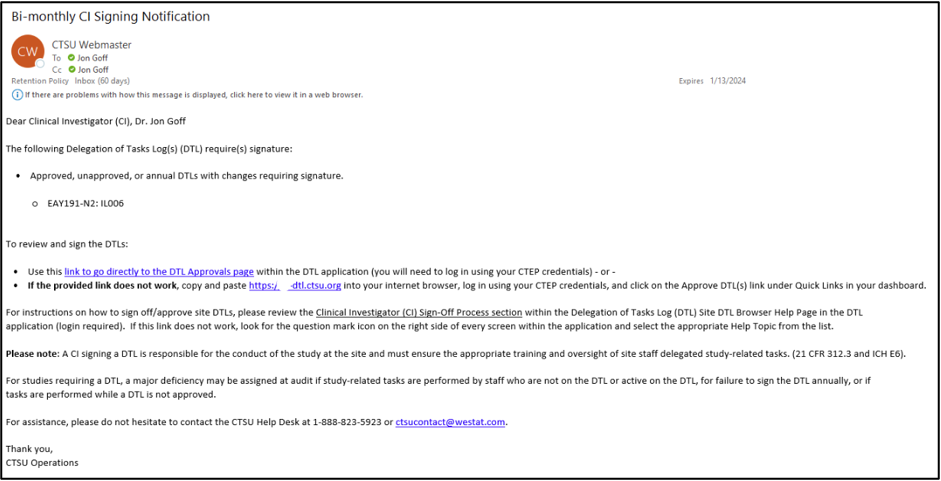
Figure 1: Bi-Monthly CI signing notification email.
The CI may also initiate the multiple DTL approval process outside of the email notification by accessing the application at https://dtl.ctsu.org and selecting Site DTL > DTL Approvals from the top menu or clicking on the Approve DTL(s) Quick Link in the Dashboard.
If an urgent need arises and approval cannot wait for the next bi-monthly notification, DTLAs can trigger an on-demand email to the CI to sign a single DTL (see Figure 2).
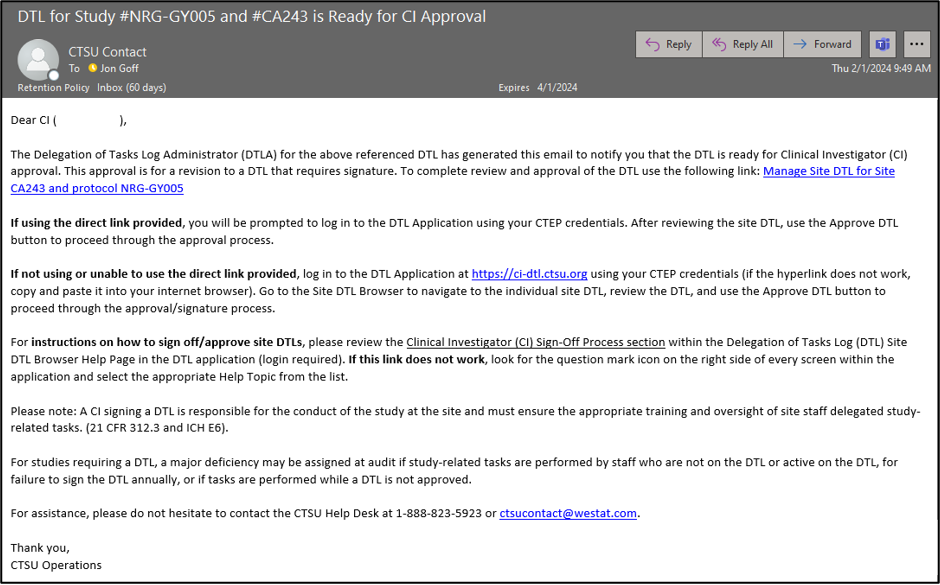
Figure 2: On-demand CI signing notification email.
See the Help Topic Submitting DTLs for Approval for more information on this process. See also the Help Topic DTL Notification Emails for more information on the different types of DTL-related email notifications.
Approving a Single DTL
The CI can use the link in an on-demand email notification (triggered by the DTLA; see Figure 2) or can select the appropriate DTL from the Site DTL Browser to begin the signing process. Important Note: Some site email systems automatically strip live hyperlinks from incoming emails. This is outside of the control of the CTSU but means that the direct links within DTL-related emails may not work. If this is the case, the alternative process for accessing the DTL approvals workflow is included in the following instructions.
- Click the link in the on-demand email notification and log in using your CTEP/ID.me credentials -or, if the hyperlink does not work-
- Log in to the DTL application at https://dtl.ctsu.org and navigate to the Site DTL Browser using Site DTL > Browser from the menu at the top of the screen or via the View/Manage Single DTL Quick Link in the Dashboard. Locate the individual DTL using filters as needed and click the View DTL
 icon to access the Manage Site DTL screen for that DTL.
- Scroll through the DTL to review all the assignments. For an updated (i.e., not in Awaiting CI Approval status) DTL, activate the Show changes since last signature toggle to view only the updates.
- When ready, click on the Approve DTL button above the grid.
- This will bring you to the DTL Approvals screen with the row for the individual DTL checked/selected.
- Either click on the Jump to eSign button at the top of the screen or scroll down to get to the eSign button at the bottom; click on the eSign button.
- Review the attestation and then click on the box in front of the commitment statement, “By checking, I agree to all commitments stated above.”
- The CTSU eSign will appear. Enter your CTEP/ID.me credentials to sign the DTL.
- You will receive a confirmation screen once your approval has been submitted (see Figure 3); it will refer you to the Requests Browser if you wish to check the status of your submission.

Figure 3: DTL Approvals submission confirmation screen.
Approving Multiple DTLs
As noted above, CIs receive bi-monthly email notifications on the 1st and 15th of every month when they have one or more DTLs to approve; the email contains a link to their DTL Approvals screen (see Figure 1). Important Note: Some site email systems automatically strip live hyperlinks from incoming emails. This is outside of the control of the CTSU but means that the direct links within DTL-related emails might not work. If this is the case, the alternative process for accessing the DTL approvals workflow is included in the following instructions.
- Click the link in the bi-monthly notification email and log in using your CTEP/ID.me credentials -or, if the hyperlink does not work-
- Log into the DTL application at https://dtl.ctsu.org and navigate to the DTL Approvals page using Site DTL > DTL Approvals from the menu at the top of the screen or via the Approve DTL(s) Quick Link in the Dashboard.
- The DTL Approvals page will display.
- DTLs available for signing display in three categories (note that if no DTL is available for signing in a category, the category will be collapsed):
- Annual review with no changes, or changes not requiring CI signature;
- Approved, unapproved, or annual DTLs with changes requiring signature; and
- New DTLs.
- You can navigate to the Task Assignment Browser, Refresh the DTL List, or Expand/Collapse the sections using the links in the DTL Approval Summary heading (see Figure 4).

Figure 4: DTL Approval Summary heading with links.
- You can expand/collapse each section individually using the icons
 /
/  in each section heading.
- Best practice is to review and sign each category separately if there are many DTLs in a category, or DTLs with a substantial number of changes. This will help to avoid losing reviews if you need to step away.
- Review DTLs under the Annual review with no changes, or changes not requiring CI signature category.
- Optional - Unselect any DTLs in this category that you do not wish to review or sign at this time.
- Required - Review the persons under the Persons with new task assignments since last signing column. If there is a large number of new task assignments, a Show More link will display in the column. Click the link to see all persons with new tasks.
- Optional - Review a summary of changes for the selected DTLs in the category by clicking on the Review Changes for All/# Selected DTLs button in the category header. A new tab will open, displaying a pre-filtered Task Assignment Browser with changes for all selected DTLs in the category. You may remove or reassign a task assignment from the Task Assignment Browser if appropriate. When your review is complete, navigate back to the DTL Approvals page by closing the DTL Task Assignment Browser or clicking on DTL Approvals at the top of the browser. Important Note: If you made any assignment changes in the Task Assignment Browser, you must select Refresh DTL List to view the updates in the DTL Approvals screen.
- Optional - Review an individual DTL by clicking the Review/Edit DTL button in the DTL’s row. This will display the individual site DTL in a separate tab. You may remove, reassign, or add task assignments as appropriate from this page. When your review is complete, navigate back to the DTL Approvals page by closing the individual page or clicking on DTL Approvals at the top of the browser. Important Note: If you made any assignment changes in the individual site DTL page, you must select Refresh DTL List to view the updates in the DTL Approvals screen.
- When ready to sign, follow steps 6-9 from the Approving a Single DTL section.
- Review DTLs under the Approved, unapproved, or annual DTLs with changes requiring signature category.
- Required – Click Select All DTL(s) in the category header to select all DTLs within the category or select individual DTLs in the category.
- Required – Review the changes by reviewing task assignment changes since the last signing of the DTLs. If there are many DTLs in this category or DTLs with extensive changes, the best practice is to review the DTLs using the Task Assignment Browser or Manage Site DTL screens as described in Section 4, steps c and d.
- When ready to sign, follow steps 6-9 from the Approving a Single DTL section.
- Review DTLs under the New DTLs category.
- Required – You must review brand new DTLs in their entirety by selecting the Review Changes for All/# DTLs in Section button in the category header (brings you to the Task Assignment browser) or reviewing individual DTLs by clicking the Review/Edit DTL button in each row (brings you to the individual Manage Site DTL screens). The buttons will change from red to blue upon review. Only once you have reviewed a new DTL, either individually or in combination with others in the category, are you able to select that DTL for signature using the checkbox.
- Required – Use the Select All DTL(s) checkbox or individual checkboxes to select the DTLs you want to sign.
- When ready to sign, follow steps 6-9 from the Approving a Single DTL section.