Site Dashboard
Introduction
The Site Dashboard serves as the landing page for site staff who access the DTL application via the login screen at https://dtl.ctsu.org or the navigation spine from a different CTSU application. It is always available to site users via the Dashboard menu item at the top of the DTL screens (see Figure 1).
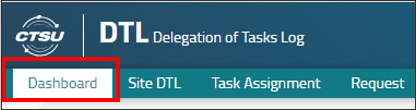
Figure 1: Dashboard Menu.
The Dashboard is user-specific and is intended to provide quick and easy access to DTL screens and activities, as well as to provide key information (i.e., counts) regarding actionable DTLs that a given user has access to.
Quick Links
Quick links provide easy navigation to common screens. Note that any screens you reach via Quick Links are also accessible via navigation using the menus at the top of every DTL screen.
Quick Links bring users to the screens in Table 1:
Table 1: Quick Links and Destinations
| Quick Link |
Destination |
| Approve DTL(s) (Visible to CIs only) |
Approve DTL(s) screen |
| Create New DTL |
Initiate Site DTL screen |
| View/Manage Single DTL |
Site DTL Browser with default filters set, from there you can select an individual site DTL to work on |
| Task Assignment Browser |
Task Assignment Browser with default filters set |
| Clone DTL(s) |
Clone DTLs screen with Step 1 expanded |
| Manage Tasks |
Manage Tasks screen with option to select Assign Task(s) by Person or Inactivate Task(s) by Person |
| Request Browser |
Request Browser with no filters set |
| Submit DTLs for Approval |
Submit Initiated DTLs to CI for Approval screen with appropriate DTLs displayed (otherwise, a message stating there are no such DTLs available) |
My Tasks
The My Tasks section of the Dashboard comprises three areas, Assignments, Clinical Investigator (CI), and Action Items.
At the top of the section are three filters that allow a user to change or narrow the results displayed in the tiles: View, Site(s), and Clinical Investigator(s) (see Figure 2).

Figure 2: My Tasks External Filters.
After setting one or more of the filters, select Apply for the settings to take effect. The filter settings will recalculate the metrics that are displayed within the Clinical Investigator (CI) and Action Item tiles (but not the Assignments tiles). Furthermore, the settings will be preserved within the same user session and tab. For example, if you go to a different DTL screen within the same browser tab, and then come back to the dashboard within the same tab, the filter settings will be preserved. To change the filter settings, either select Reset to return them to their default values or update one or more filter and then select Apply.
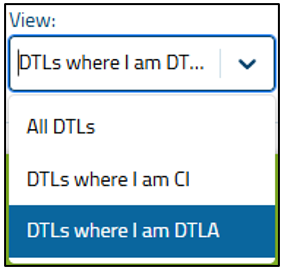
Figure 3: View Filter.
View Filter: Only users who have the CI or DTL Administrator (DTLA) task assignment on at least one DTL will have the CI- or DTLA-related options in the dropdown (see Figure 3). A user who is a CI on at least one DTL will have their view defaulted to DTLs where I am CI. Likewise, a user who is a DTLA on at least one DTL will have their view defaulted to DTLs where I am DTLA. Site staff who do not have either of these roles will only have the All DTLs option.
The option selected in the View filter will directly affect the options available in the next two filters, i.e., the Site(s) and Clinical Investigator(s) filters (but note that they do not affect what is available in the View filter).
Site(s) Filter: Sites available in the filter dropdown are those where the user has roster affiliations and there are any site DTLs in any status. As noted, the available sites are also dictated by the option selected in the View filter. When users initially arrive on the Dashboard, the default value in the Site(s) filter will be All.
Clinical Investigator(s) Filter: Clinical Investigators to display in the CI filter are those applicable to the user’s viewable Site DTLs (as noted, they are dictated by the option selected in the View filter, when applicable). When users initially arrive on the Dashboard, the default value in the Clinical Investigator(s) filter will be All.
Assignments: This allows users to view information about the DTLs where they have certain task assignments. As previously noted, these metrics are not recalculated based on the View, Site(s), and/or Clinical Investigator(s) filters; they remain constant for each user. See Table 2 for the destinations for each tile.
Table 2: Assignments Tiles and Destinations
| Tile Name |
Destination |
| My DTL Tasks |
Task Assignment Browser with external filter View set to DTLs where I am assigned tasks and the internal CTEP ID filter set to the CTEP ID of the current user. |
| DTLs where I am CI |
Site DTL Browser with external filter View set to DTLs where I am CI. |
| DTLs where I am DTLA |
Site DTL Browser with external filter View set to DTLs where I am DTLA. |
Clinical Investigator (CI): These two tiles provide information on DTLs that are actionable by a CI (note that you do not need to be a CI to view these tiles). The tiles bring users to the destinations described. Metrics for these tiles will be recalculated based on the selected filters (View, Site(s), Clinical Investigator(s)). After the filters are applied, filter values will be carried over to the corresponding target pages. The tiles bring users to the destinations described in Table 3.
Table 3: Clinical Investigator Action Items and Destinations
| Action Item |
Destination |
| Upcoming annual DTL reviews |
CIs: DTL Approvals screen
All other users: Site DTL Browser displaying Approved DTLs with a CI Approval Expiring icon indicating they are due for annual approval within 31 days (with a custom header). The View, Site(s), and Clinical Investigator(s) filters on the Site DTL Browser will be set with the same filter values set on the Dashboard. |
| New DTLs awaiting signature |
CIs: DTL Approvals screen
All other users: Site DTL Browser filtered for DTLs with a status of Awaiting CI Approval. The View, Site(s), and Clinical Investigator(s) filters on the Site DTL Browser will be set with the same filter values set on the Dashboard. |
Action Items: These tiles provide metrics regarding actionable items within DTLs the current user has access to view. Metrics for these tiles will be recalculated based on the selected filters (View, Site(s), Clinical Investigator(s)). After the filters are applied, filter values will be carried over to the corresponding tile target pages; these are described in Table 4.
Table 4: Action Items and Destinations
| Action Item |
Destination |
| Unapproved DTLs with patient accruals |
Site DTL Browser with external toggle set to DTLs with patient accruals and grid filtered for DTLs with Unapproved status. The View, Site(s), and Clinical Investigator(s) filters on the Site DTL Browser will be set with the same filter values set on the Dashboard. |
| DTLs missing required task(s) |
Site DTL Browser filtered for DTLs with status reasons "Some Required tasks are not Active" or "Some Required Tasks are not Assigned" (must click on DTL status to view the status reason; this will also appear as a column if the table is exported). The View, Site(s), and Clinical Investigator(s) filters on the Site DTL Browser will be set with the same filter values set on the Dashboard. |
| Unapproved DTLs |
Site DTL Browser filtered for DTLs with Unapproved status. The View, Site(s), and Clinical Investigator(s) filters on the Site DTL Browser will be set with the same filter values set on the Dashboard. |
| Initiated DTLs |
Site DTL Browser filtered for DTLs in Initiated status. The View, Site(s), and Clinical Investigator(s) filters on the Site DTL Browser will be set with the same filter values set on the Dashboard. |
| Site registrations pending DTL requirement |
Site Registration with Pending DTL Requirement popup with the following columns: Site, Protocol, LPO, Protocol Status, Site-Protocol PI, Site Registration Status, Status Date, and Status Reason. This popup includes Site Registrations for which a site DTL has been at least initiated, but the PSR is not yet complied (e.g., the site DTL is not yet approved). The Site filter will be set with the same filter values set on the Dashboard. If the Clinical Investigator(s) filter is set to anything but All on the Dashboard, the number of selected CIs will appear in the heading and the data will apply only to those CIs. |
| Pending task assignments |
Task Assignment Browser filtered for tasks with Pending task status. The View and Site(s) filters on the Task Assignment Browser will be set with the same filter values set on the Dashboard. If the Clinical Investigator(s) filter is set to anything but All on the Dashboard, the number of selected CIs will appear in the heading and the data will apply only to those CIs. |
| Tasks with suspended assignees |
Task Assignment Browser filtered for tasks with Pending task status and task status reason "CTEP Registration Status is other than Active." The View and Site(s) filters on the Task Assignment Browser will be set with the same filter values set on the Dashboard. If the Clinical Investigator(s) filter is set to anything but All on the Dashboard, the number of selected CIs will appear in the heading and the data will apply only to those CIs. |
| Tasks with unrostered assignees |
Task Assignment Browser filtered for tasks with Pending task status and task status reason "Member role status is not Active or Followup status." The View and Site(s) filters on the Task Assignment Browser will be set with the same filter values set on the Dashboard. If the Clinical Investigator(s) filter is set to anything but All on the Dashboard, the number of selected CIs will appear in the heading and the data will apply only to those CIs. |
Post Date: xx-Feb-2025