Task Assignment Browser Overview
The Task Assignment Browser is visible to all user types and is accessed from the Task Assignment Browser link along the menu bar as well as the Quick Link within the site Dashboard (site users only). It lets you view task assignments across DTLs for your affiliated sites and organizations. The displayed columns are:
- Site
- Protocol
- DTL Status (More Info) Defaults to all DTL statuses except Retired.
- Assignee Name
- Registration Type
- CTEP ID
- Task Name
- Task Status (More Info) Defaults to all task assignment statuses except Inactive.
- Start Date
- End Date
- Task Status Reason (More Info)
- Actions
Outside of the browser grid, there are four additional functions available (see Figure 1).
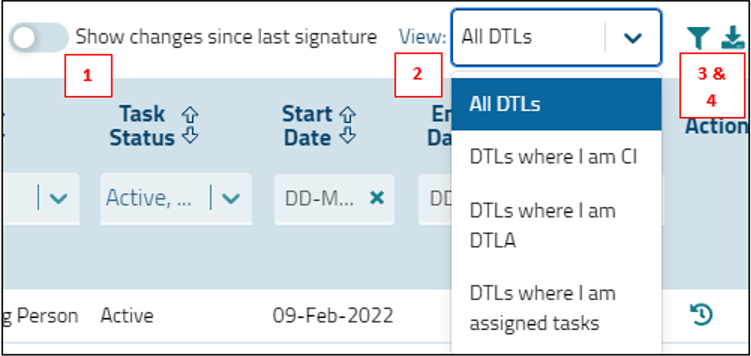
Figure 1: Task Assignment Browser – External functions.
- A toggle allows you to only show task assignments that were changed since the last signature for the applicable site DTLs.
- A View control (visible only to site users) allows you to view all possible site DTLs or site DTLs where you are the DTL Administrator (DTLA), the Clinical Investigator (CI), or are assigned any tasks.
- The Filter
 icon allows you to show/hide the filters within the browser table.
- The Export
 icon allows you to export the current contents of the browser display table to Excel. This export also contains a column not included in the browser view, i.e., Assignee Email Address.
You can filter the grid using any of the display columns except for the Action column. A filter must be set for at least one of the following criteria: Site, Protocol, Assignee Name, CTEP ID, Task Status or Task Status Reason - or, if you are a site user - by setting the external View Type control to something other than All Site DTLs. Note that for site users, the default setting is to display all tasks except for those with an Inactive task status on all site DTLs except those in Retired status; filters can be used to further narrow the display. All other user types will initially see an empty grid and must set one of the aforementioned filters to view any results.
After setting your filters, select the Apply Filters button. All output columns are sortable by clicking the column header. The i  buttons next to the Site, Protocol, and Assignee Name provide additional information on the institution, protocol, and person, respectively. Click the Reset Filters link to clear the filters within the table and set them back to their default state; this will also reset the external controls.
Action icons will appear in the Action column of the Task Assignment Browser depending on the user type, and for site users, whether you are assigned the CI or DTLA task. The visible action icons also depend on the status of the given site DTL; they will appear unless a DTL is in a retiring or retired status, the DTL is locked, or the DTL is for a Canadian site and must be updated in the Canadian Clinical Trials Group’s (CCTG’s) Roster Interface and Participants List Environment (RIPPLE) application. Of note, all users can view and use the Task Assignment History  icon for a given task assignment.
See the legend at the bottom of the Task Assignment Browser screen for more information about the different icons used in the Task Assignment Browser.
Post Date: xx-Aug-2026